

Trades and Transactions
How to perform transfers and trades from the Partner Portal?
You can perform the following transactions on behalf of a customer through the Partner Portal:
- Trade (buy or sell)
- Transfer (deposit or withdrawal)
User Permissions
Prior to being able to perform a trade or a transfer, you will want to ensure that the user that will be performing the transaction has the appropriate permissions. To check the current permissions assigned to your Partner Portal users, navigate to the Team section using the left sidebar navigation.
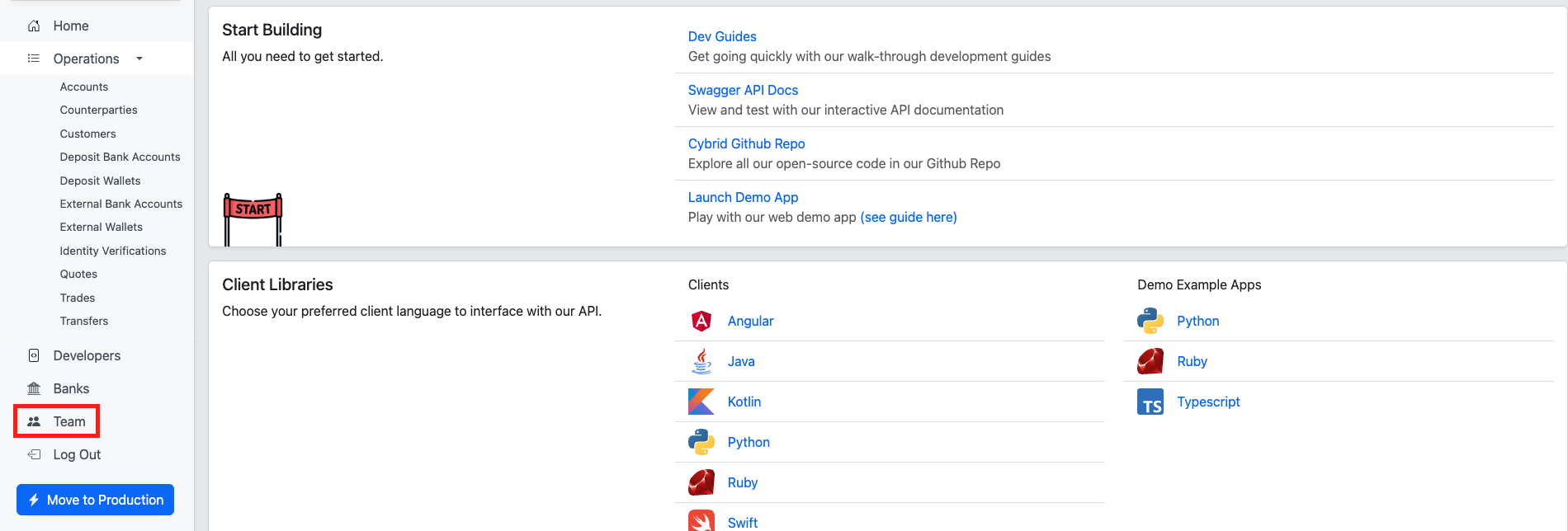
You will want to ensure that the user that will be performing the transaction(s) has the Finance set of permissions, denoted by the checkmark symbol (✓).

If the user that will be performing the transaction(s) does not have the Finance set of permissions, a User Admin can update their permissions.
Trade and Transfer options require Finance permissions and a verified customerThe 'Trade' and 'Transfer' options in the Actions menu will only be visible if both of the following are true:
- The logged-in user has the required Finance permissions (as described above).
- The selected customer is in a 'verified' state. If the customer's KYC has expired, failed, or is otherwise
unverified or frozen, only 'View Raw' will be available in the Actions menu.If you do not see 'Trade' or 'Transfer' options, check both your user permissions in the Team section and the customer's verification status.
Trades
You can perform a trade on behalf of a customer by following these steps:
-
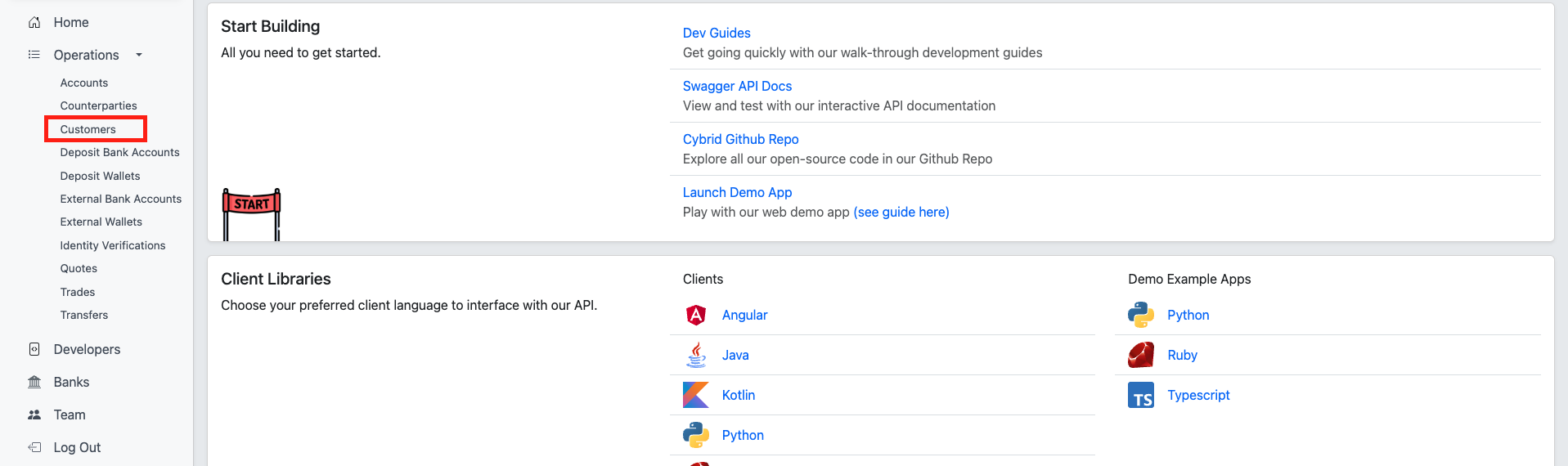
Navigate to the Customers section using the left sidebar navigation.
-
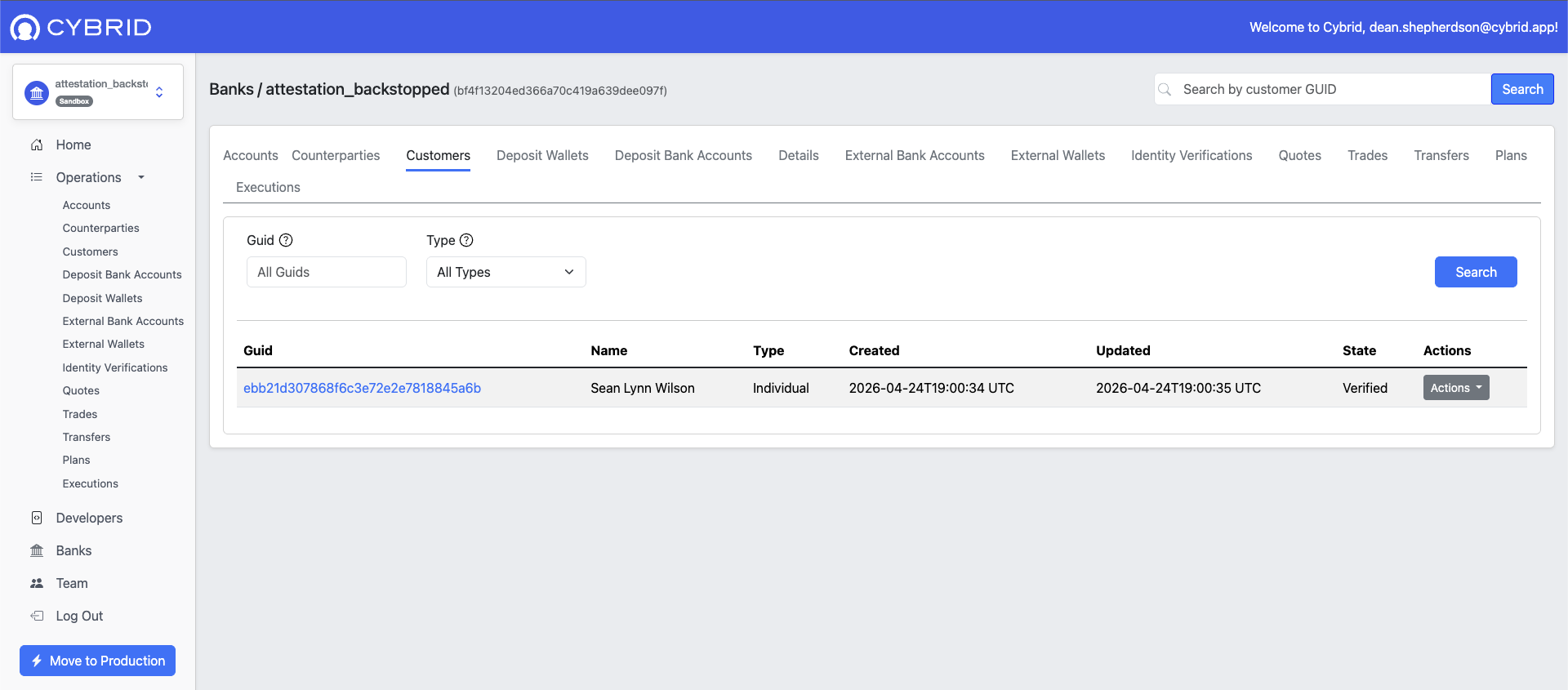
Select the customer for whom you would like to perform a trade on behalf of.
-
Click on the customer GUID to view the accounts associated with the customer.
-
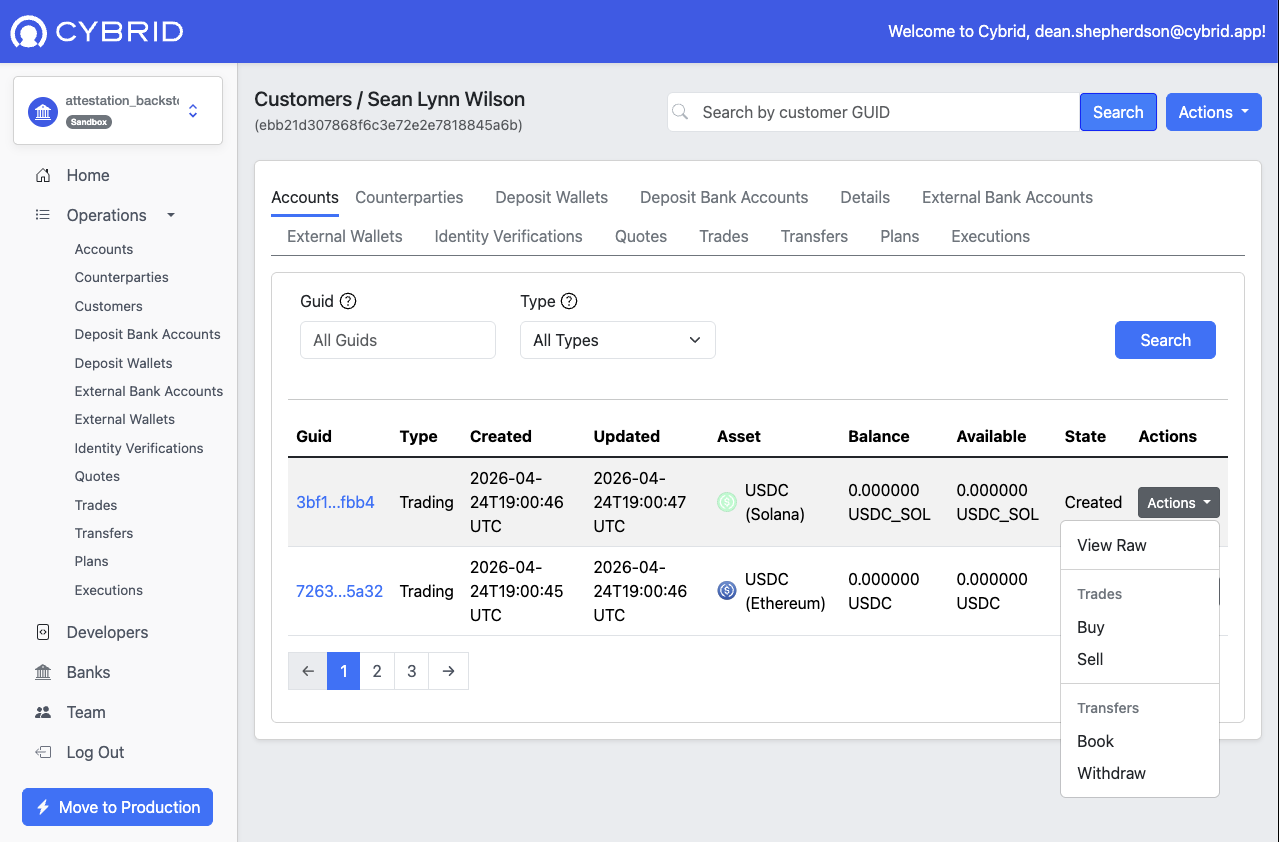
Find the trading account you are interested in and click on the Actions button.
-
Click on the type of trade you wish to perform (Buy or Sell).
-
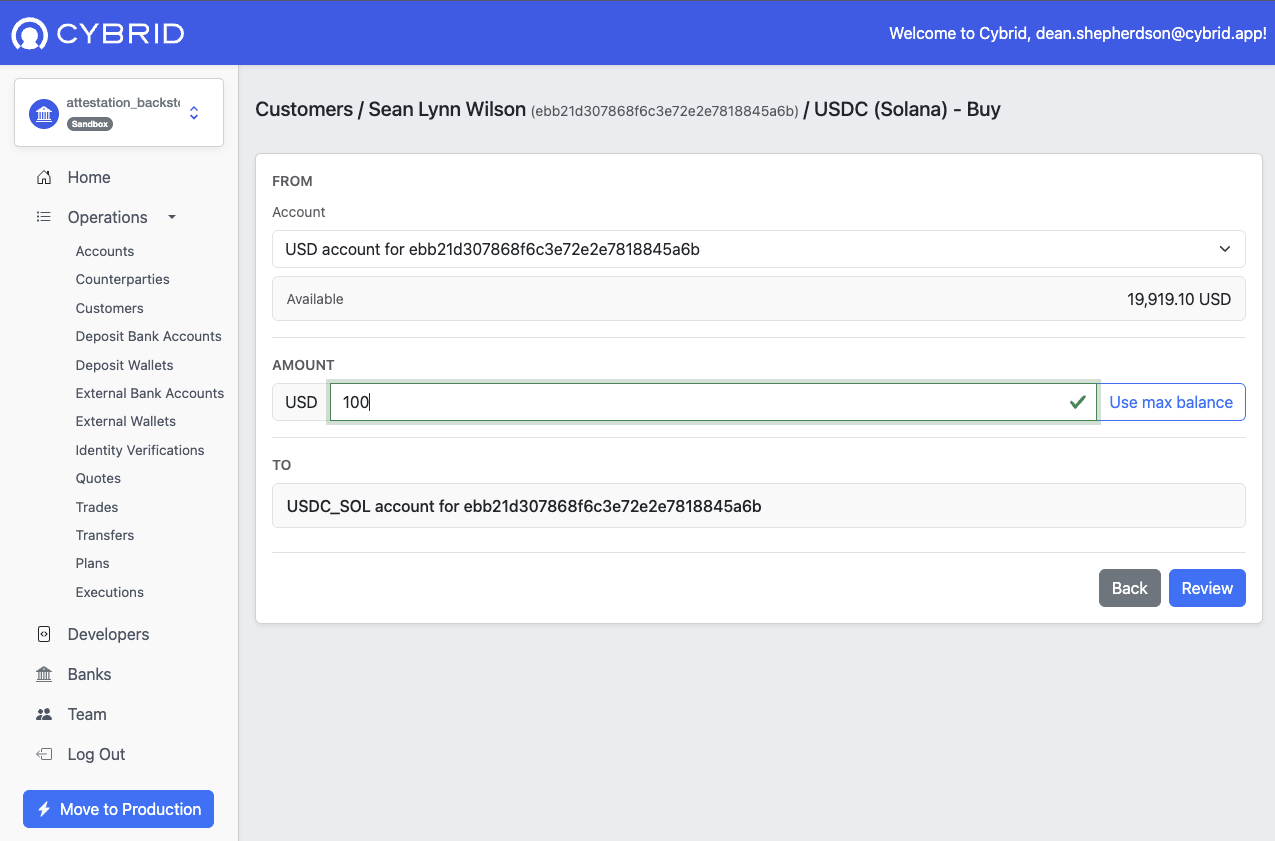
Provide all required information by:
- Select the fiat account to use for the trade.
- Enter the amount to trade.
- Click the Review button.
-
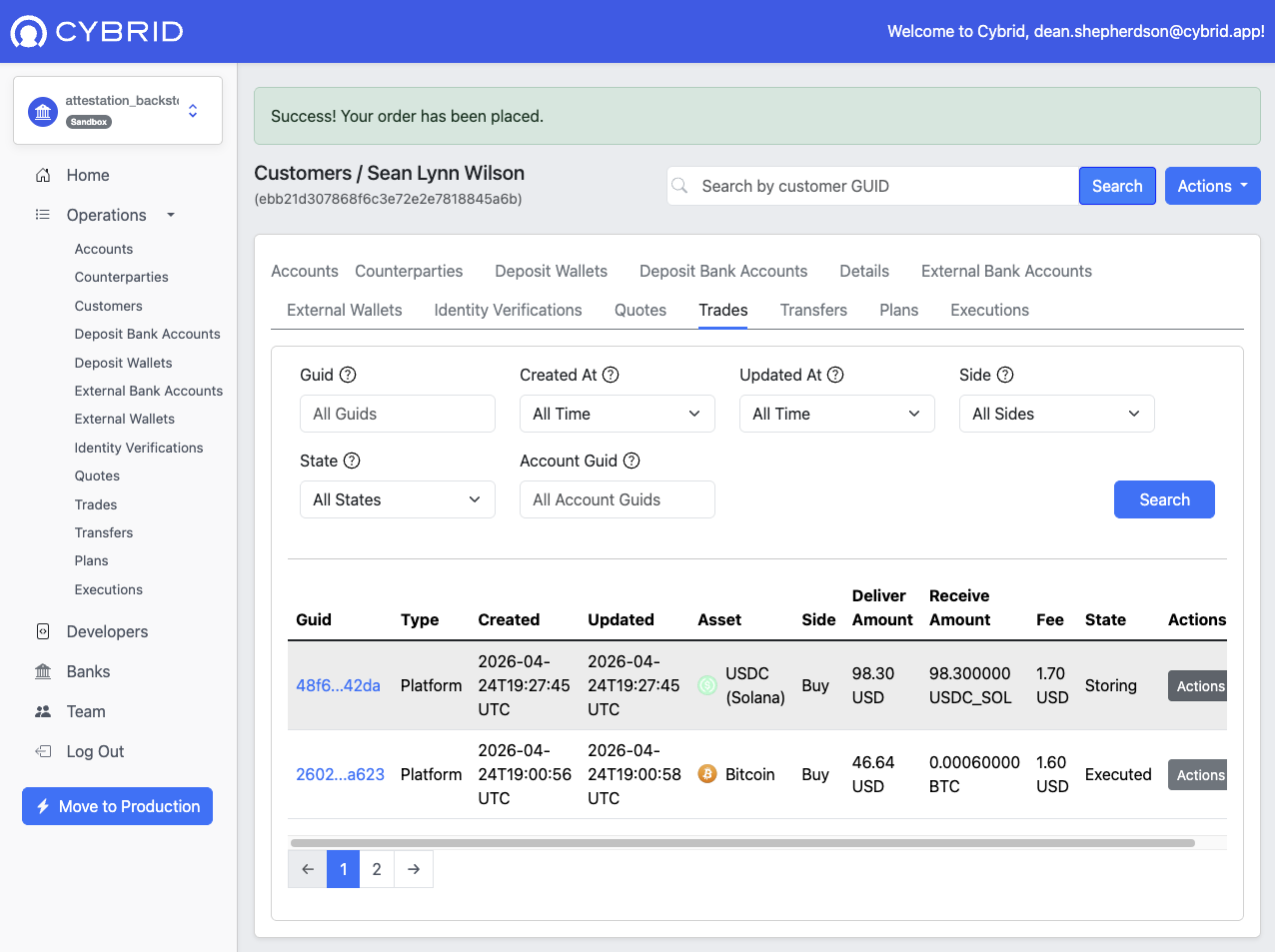
Click Confirm Buy to complete the trade.
Transfers
You can perform a transfer on behalf of a customer by following these steps:
-
Navigate to the Customers section using the left sidebar navigation.
-
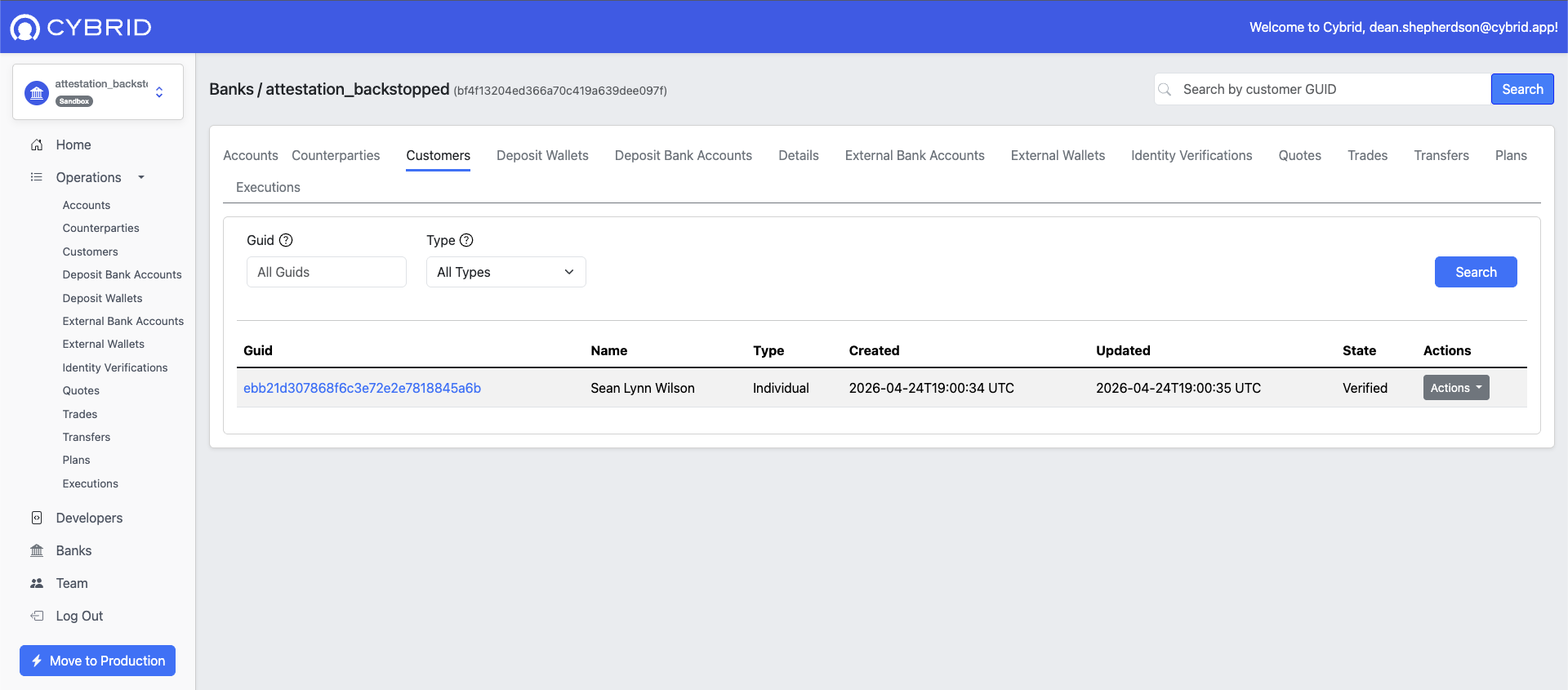
Select the customer for whom you would like to perform a transfer on behalf of.
-
Click on the customer GUID to view the accounts associated with the customer.
-
Find the fiat account you are interested in and click on the Actions button.

-
Click on the type of transfer you wish to perform (Deposit or Withdrawal).
-
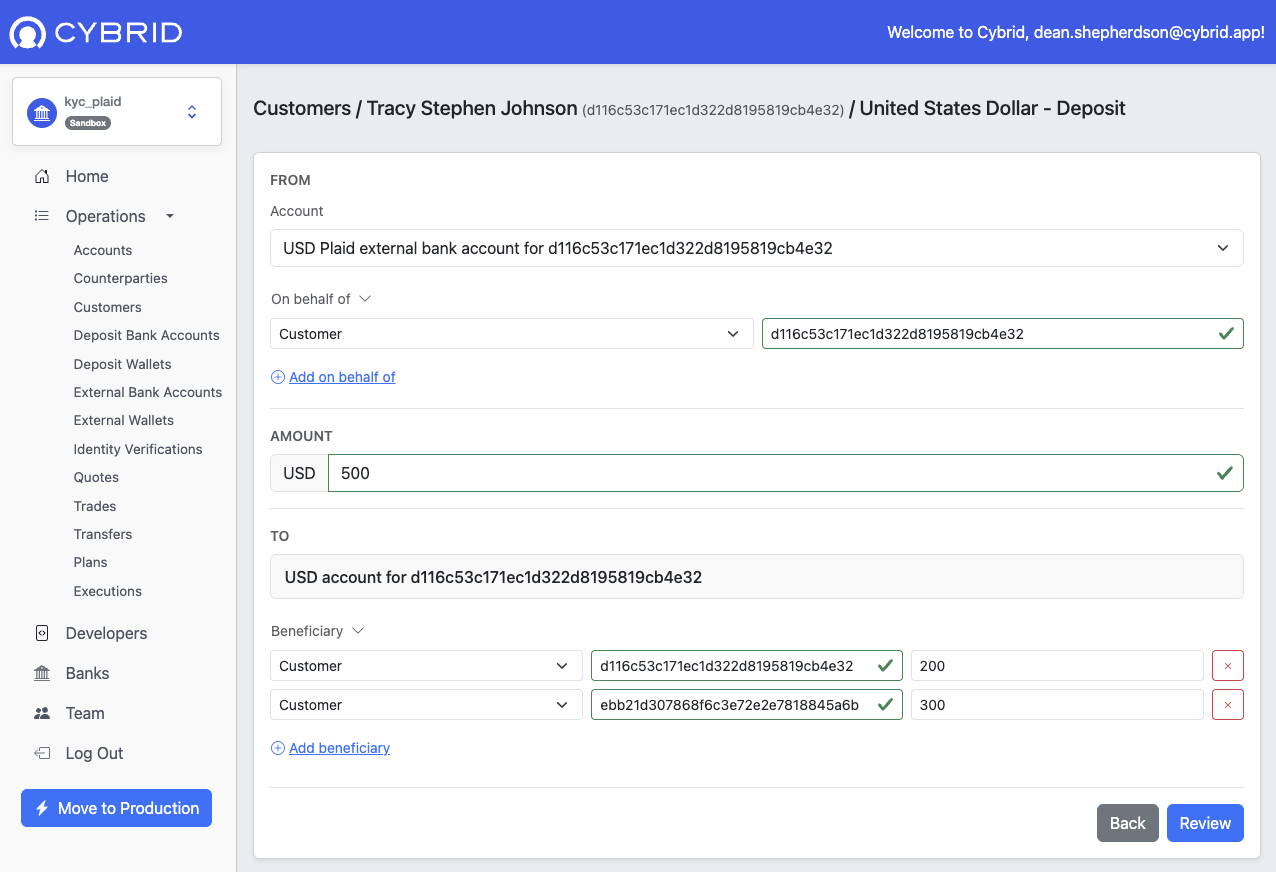
On the new transfer screen, provide all required information by:
- Add one or more source participants.
- For each source participant, select the type of participant, enter the amount to be transferred, and enter the participant GUID.
- Add one or more beneficiaries (destination participants).
- For each destination participant, select the type of participant, enter the amount to be transferred, and enter the participant GUID.
- Ensure that the sum of all amounts for the source participants equal the sum of all amounts for the destination participants.
- Click the Review button.
Updated about 1 month ago