

User Management
How to manage the partner portal users?
Add a New User
To add a new user to the Partner Portal, follow these steps after logging into the Partner Portal:
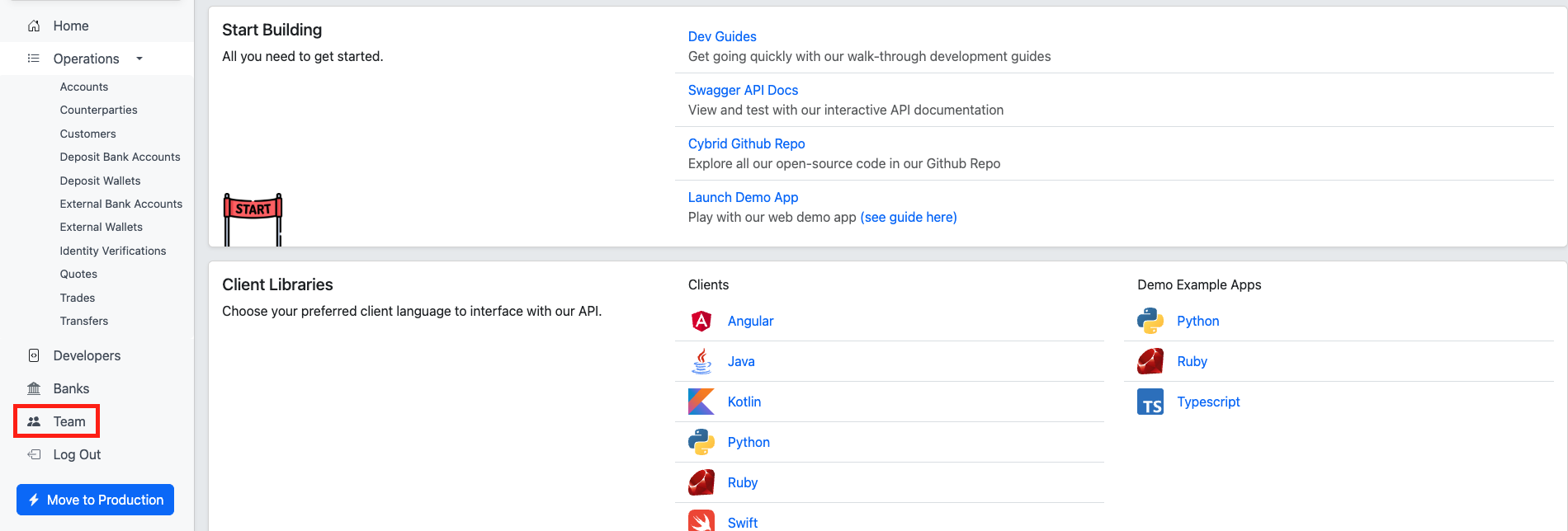
- Navigate to the Teams section using the left sidebar navigation.
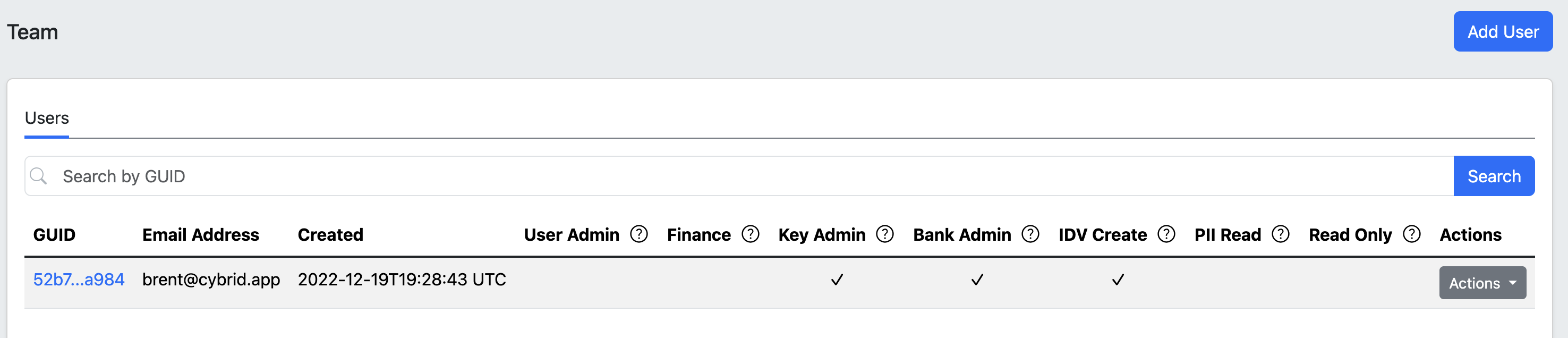
- Click the Add User button (only admin users have this option).
- Enter the new user's email address (Google or GitHub) and click Create. The invited user is not notified by email.
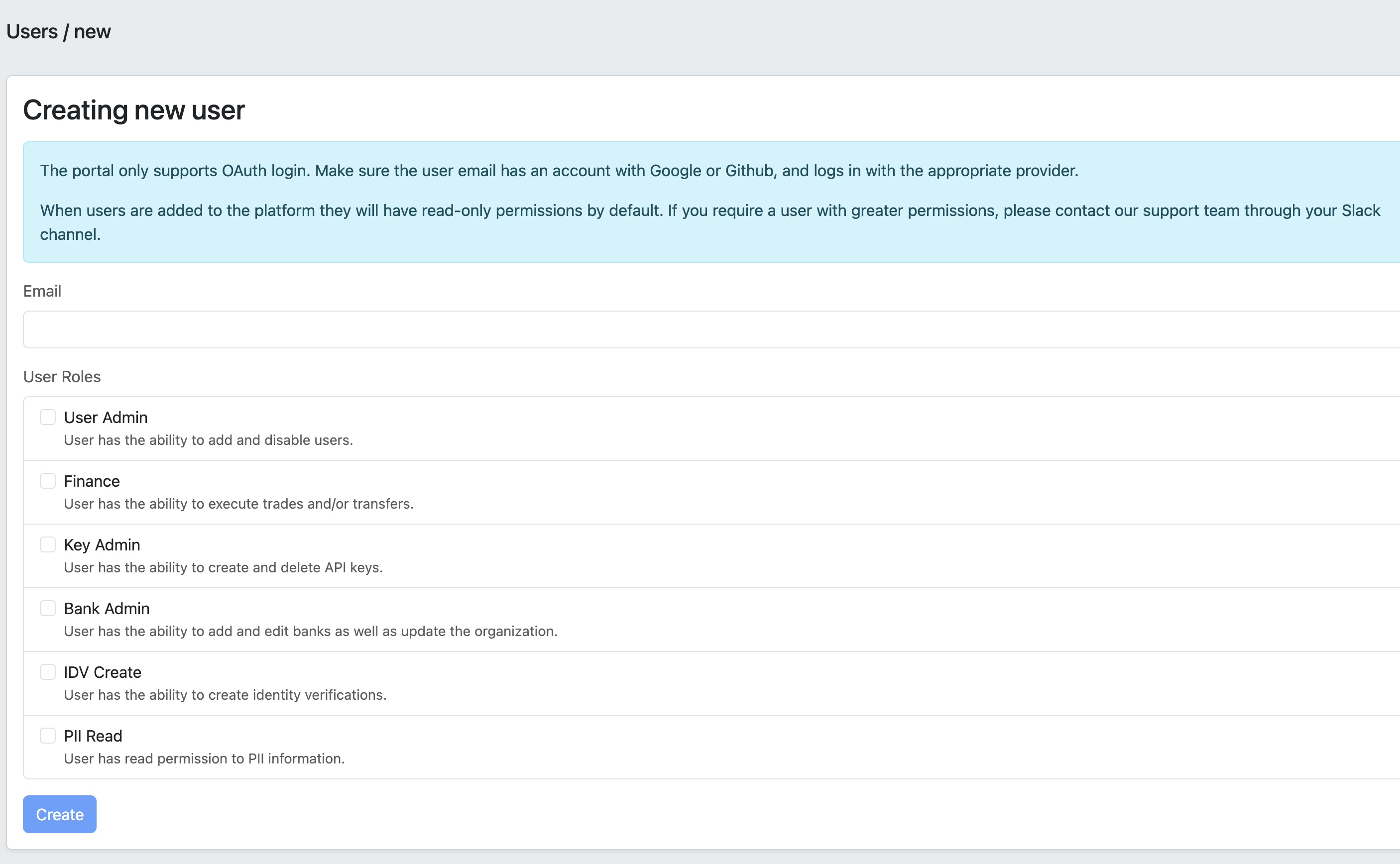
- For newly created users, a URL with an invitation token appears in the success message. Share this invite URL with the new user so they can accept the invite and log in to the Partner Portal. An invite URL is not generated for existing users that have been re-added.

Onboarding steps pageIf you see the "Onboarding Steps" page after being added by your admin, fill out the form to create a bank and organization. This is separate from your actual production bank. After completing the form, log out. On your next login, you can select the appropriate production organization from the list.
Editing a User's Role(s)
To edit a user's role(s), follow these steps after logging into the Partner Portal:
- Navigate to the Teams section using the left sidebar navigation.
- Locate the user in the table
- Click on Action -> Edit
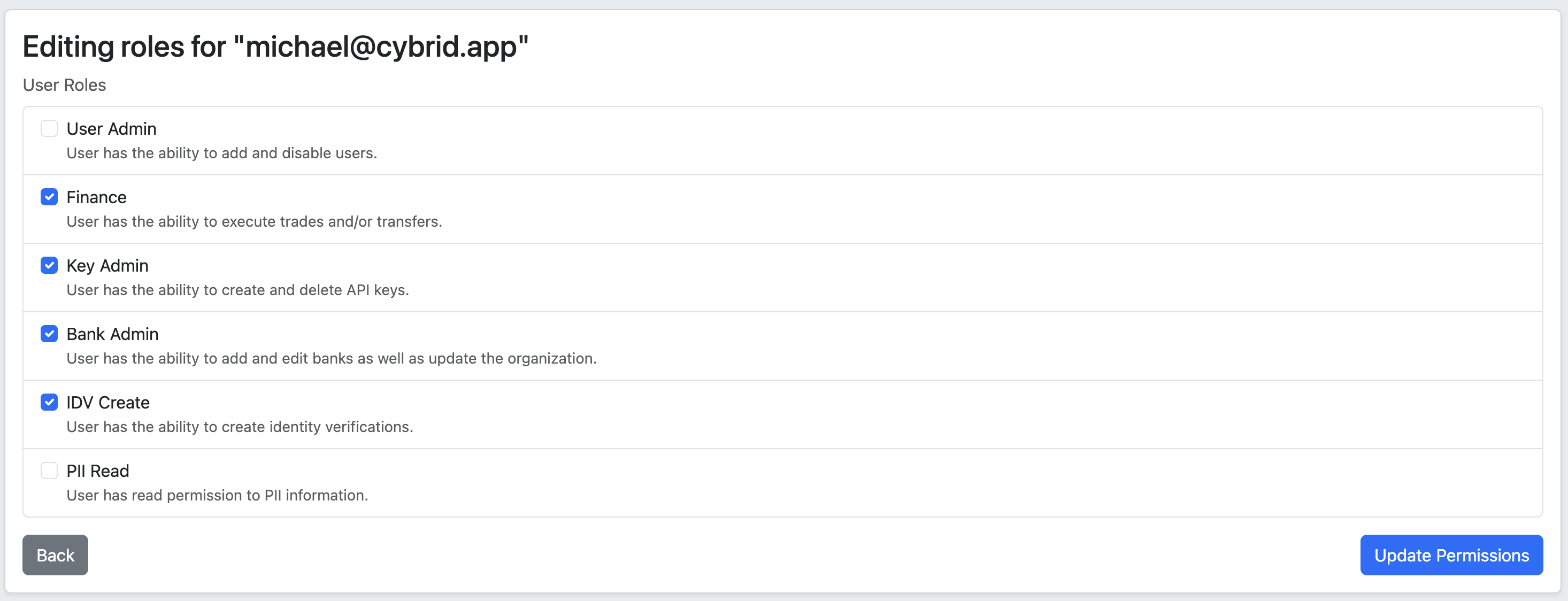
- Select or deselect the roles you want to enable or disable.
- Click Update Permissions to save your result
Role change notes
- If the user is currently logged in, they must log out and log back in to see the changes.
- De-selecting all roles leaves the user with read-only permission on the portal.
Disabling a user
- Navigate to the Teams section using the left sidebar navigation.
- Locate the user in the table
- Click on Action -> Disable
- Confirm you want to disable the user by clicking Disable
Updated about 2 months ago
Did this page help you?